Communications Overview
The Communications area allows you to view any Communications sent out from your accessplanit platform. It also lets you create new communications and resend existing ones.
If you require support with any Emails you have sent, or Emails in general, it is recommended you take time to explore this related Troubleshooting page.
Options
There are three different areas where you can view communications that are sent via the platform:
You can also set up templates for Communications in the following places:
To learn how to use the Communications DataGrid, click here.
Sending
You can manual send emails directly from the DataGrids on the platform, through two separate methods:
- Email (for 50 or under recipients)
- eCampaigns (for over 50 recipients)
If you would like to learn how to send emails from a DataGrid, you can visit this section of the Help Guide.
If you would like to learn more about eCampaigns or how to send bulk emails, you can visit /wiki/spaces/HG/pages/532381700 of the Help Guide.
FAQ: Communications not showing on booker user or the account
One possibility if a user does not have a Communication Log created for a booking, is because if the Booker is the delegate, the Communication Log will be mapped to the 'booking' rather than a delegate.
As the bookings are their own module within AP, the booking confirmation email will be triggered by an existing workflow. For instance, if the user was the booker, and not a delegate of a course, since the user's User ID did not trigger the workflow, the communication is not mapped to the User ID, hence why the Communication Log is empty.
Could you explain why the booking is mapped to a delegate and not the booking user? Is there a process to help it map to the booker?
To make sure the ‘mapped to label' is assigned to the booked user, delegates would have to manually book onto the course and the admin should not book the delegates onto the courses on their behalf. As the 'Mapped to Label’ essentially shows the last user to access the booking.
Alternatively, it would be a product suggestion to create a new field or to make the ‘Mapped to label’ field fixed to the booking user. You can suggest a product here: https://portal.productboard.com/cwfvxobqpbpj4sjupffqdnxm/tabs/1-under-consideration/submit-idea - and selecting ‘+ submit idea’.
Where to find Communications
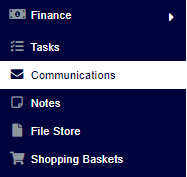
Communications are available in the left-hand menu.
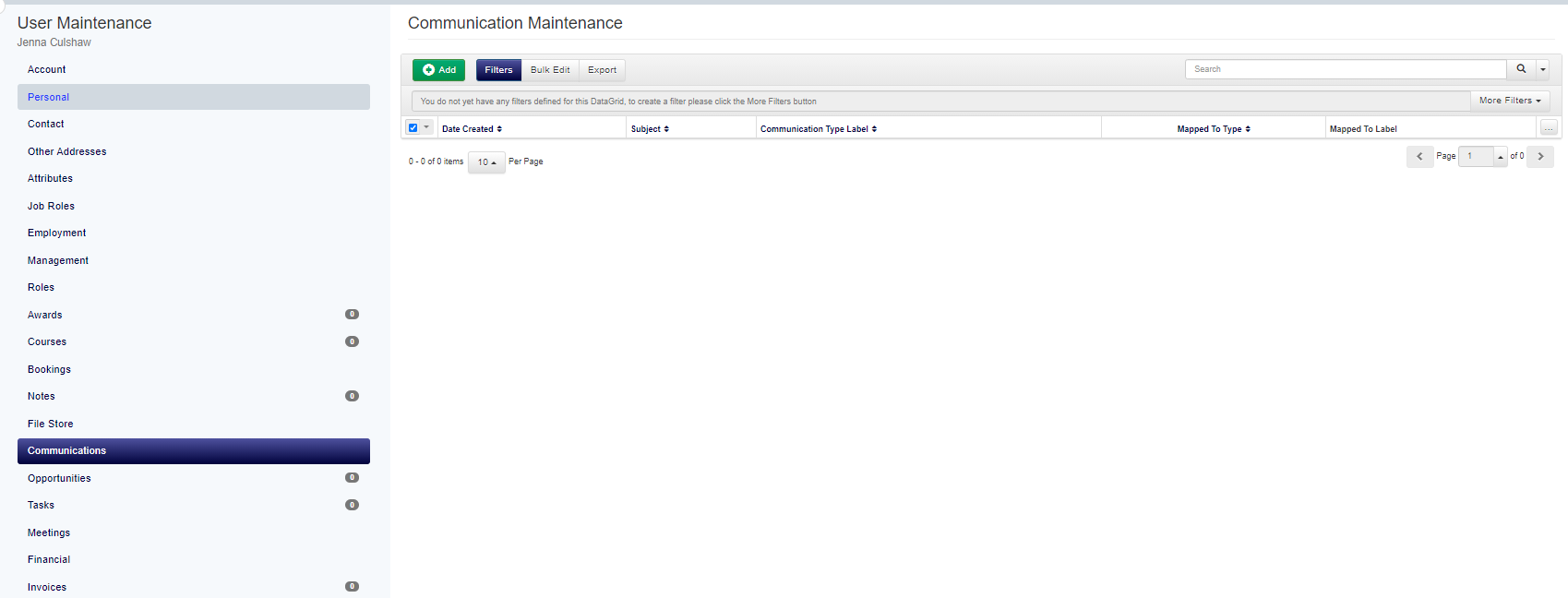
You can also find Communications relevant to all accessplanit modules from their specific pages. For example, you can look up a User from the Users Datagrid to view all of the Communications logged for that User.
Setting up a Communication
If you wish to send out a new Communication, you'll need to fill out the following fields:
Mapped to
This is who the Communication is to be (or was) sent out to. This could be the User who the Communication was with, the Account of the User who the Communication was with, or, the course/Invoice/meeting that the Communication was about.
Date Created
The Date Created field will automatically populate with today's date and time, but you can override this if the Communication happened on a different day.
Communication Type
This is the format your Communication took. There are many pre-defined options available. You can also create your own Communication types in the Custom List Items page.
Communication Category
Here, you can specify what Category your Communication falls into. There are many pre-defined options available. You can also create your own Categories here.
Subject
This is what your Communication was about.
Content
Here, you can enter in further details regarding the Communication.