How To: Price Schemes
Important information
We have changed the way Price Schemes currently work to align with how the rest of Course Template/Date inheritance works so that the logic is consistent.
This change took place during March 2022
Pre March 2022 functionality:
1. If a Course Template has a price scheme on
2. Then a Course Date is scheduled with that price scheme too
3. The Course Date price scheme is then removed for any reason
4. The Shopping Basket would use the price scheme cost from the Course Template
New functionality since March 2022
1. If a Course Template has a price scheme on
2. Then a Course Date is scheduled with that price scheme too
3. The Course Date price scheme is then removed for any reason
4. The Shopping Basket would use the course cost, not a price scheme
How to add a Price Scheme
- Select Price Schemes from the Administration area. You will be taken to the Price Schemes DataGrid. To learn more about DataGrids, click here.
- Click the Add button at the top of the DataGrid. This will open the Price Scheme dialog box.
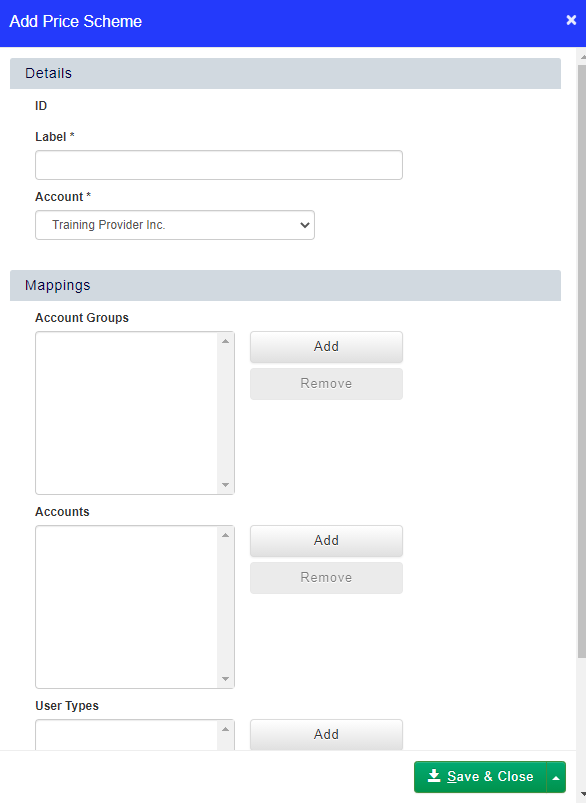
- Enter the Label into the Price Scheme and select the Account that the Price Scheme belongs to.
- To add Account Groups, Accounts or Job Roles that can access the Price Scheme, click the Add button next to the relevant Mapping, and then select the item to apply the Price Scheme to. To unmap an item from the Price Scheme, select it and click Remove.
- Click Save & Close to save your Price Scheme.
Price Scheme Inheritance
Price Schemes that are mapped only to an Account or Account Group apply based on the Booking Users Account, not the Delegate Account.
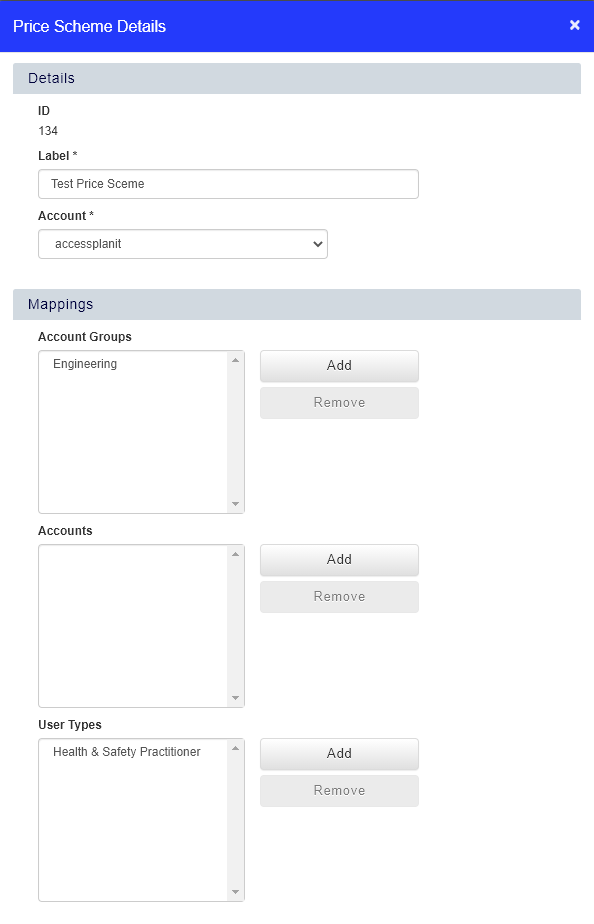
Meaning that the Price Scheme will only apply if the Booking Users Account or Account Group is listed in the above screenshot.
This does not have to be the Bookings Users 'main account'. The price scheme will apply if the Booking User has and active employment record with any of the Accounts or Groups listed.
For Price Schemes that are mapped to a Job Role. This will apply based on the Delegates job role, not the Booking Users Job Role.
The Job role does not need to be the delegates Main Job Role.
How to edit an existing Price Scheme
- Select Price Schemes from the Administration area.
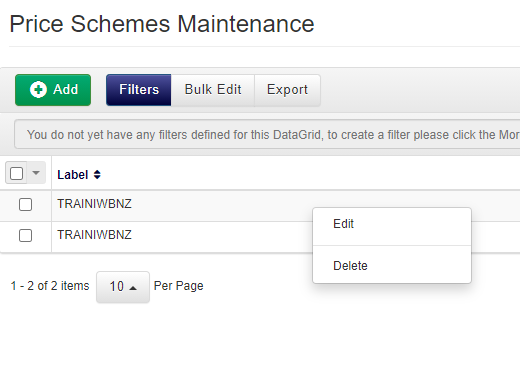
- Right click the Price Scheme you wish to edit, and select Edit from the context menu.
How to delete a Price Scheme
- Select Price Schemes from the Administration area.
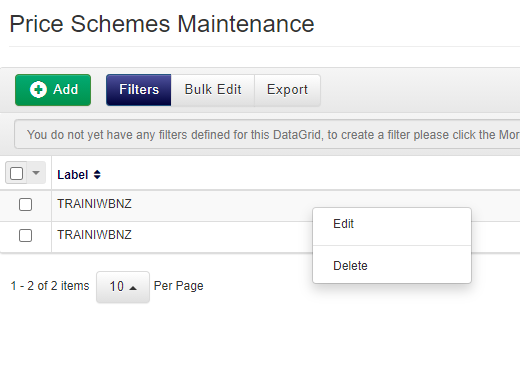
- Right click the Price Scheme you wish to edit, and select Delete from the context menu.
How to apply a Price Scheme to a Course Template
- Navigate to the Course Templates area.
- Right click the Course Template you wish to add the Price Scheme to, and select Price Schemes from the context menu.
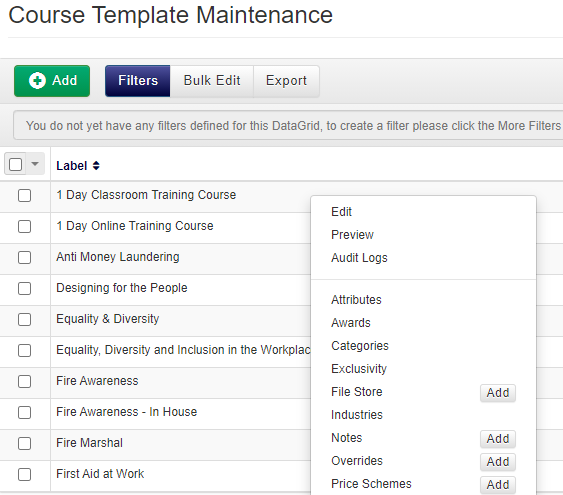
- Click Add at the top of the DataGrid. Select the Price Scheme from the drop-down, and choose the Cost and Cost Type.
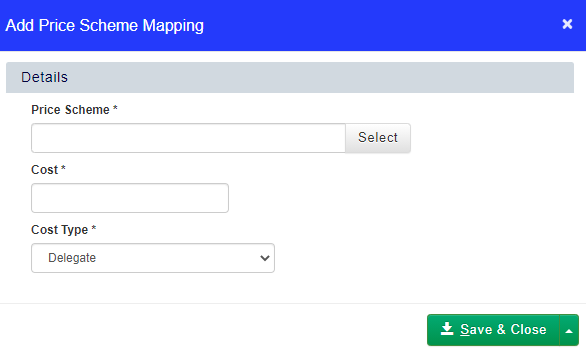
- Click Save & Close to save the Price Scheme to the Course Template.
Price Schemes (click for more)
In order for a Price Scheme to apply, you need to have both the account or job role if both are specified in the scheme itself.
For example, if you have the combination shown below of account and user type, for this price scheme to apply, you would have to meet both of the criteria for this to apply.
Meeting the account or the job role on their own would not work.